
首先先去eclipse下载,建议然后正常进行安装,当然中途还会下载jdk的插件,静静等待就好,安装好后选择工作区,开始准备搭建(一行字一下午)
c工程
这部分就是测试交叉编译链的配置,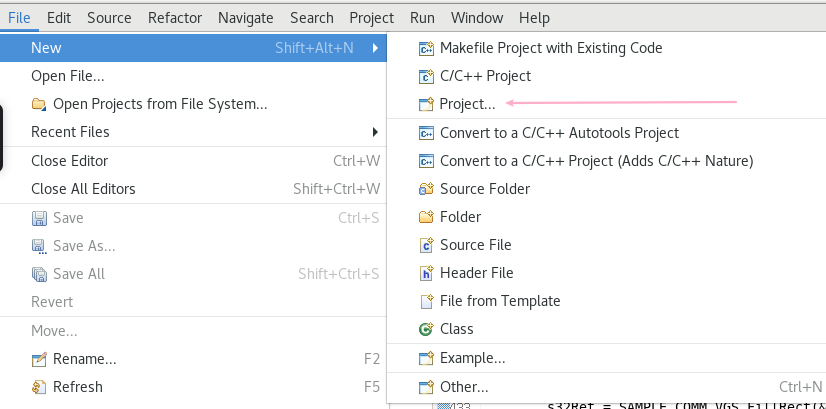
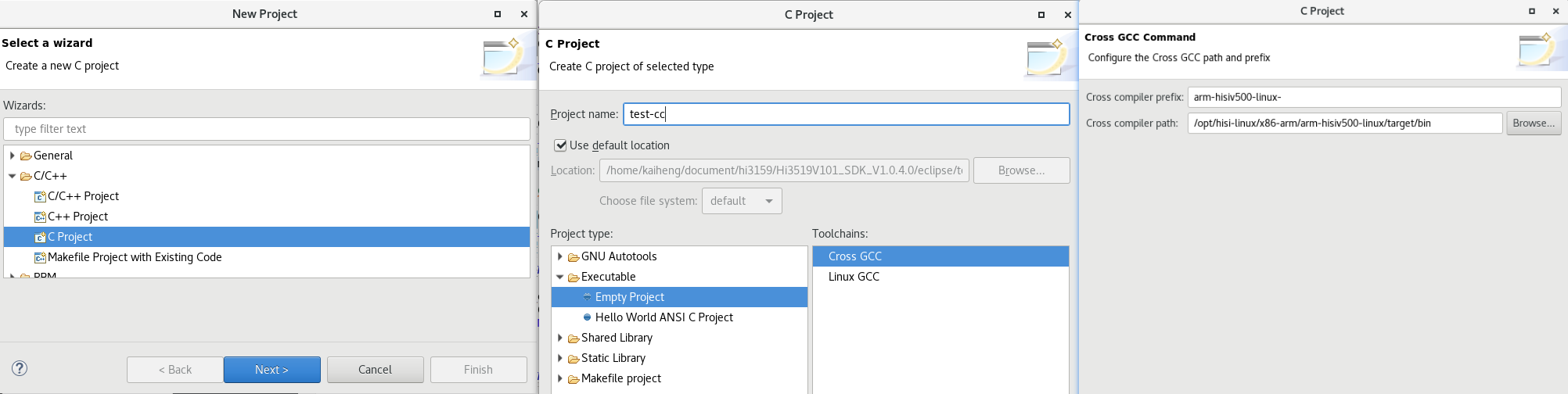
然后等待建立了新的空工程,里面就有默认的include文件,添加新的代码文件然后随便写点代码然后点击小锤子build即可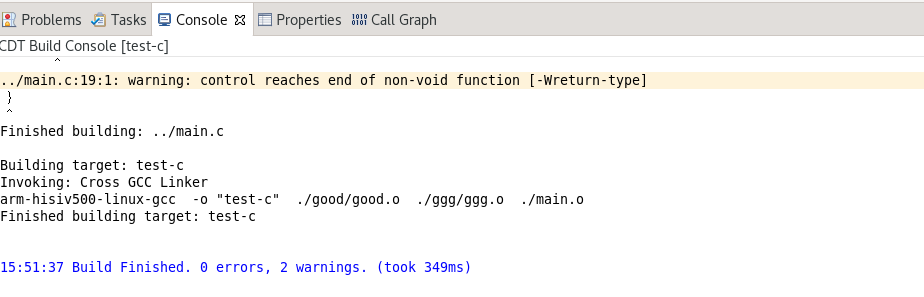
c/c++/opencv工程
创建工程也是差不多的路数,重要的是c调用c++函数首先在project->properties(快捷键alt+enter)->c/c++ build->settings->cross G++ linker添加相关链接库的参数
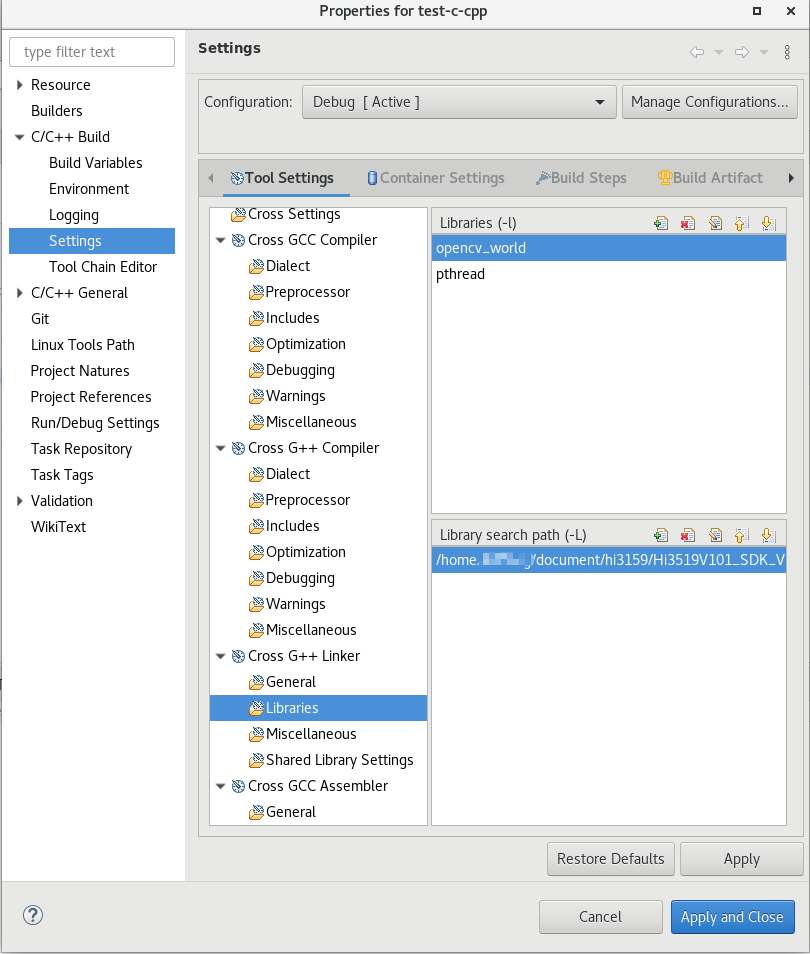 还有opencv的include文件夹,在-I的相关参数里,在这里总结一下
-D是define symbol -I是include paths 是路径,-include是头文件 linker里的libraries是相关动态库的调用,就是后缀是.so的文件,库文件名为文件名中的lib(name).so文件中的name部分。例libopencv_world.so里面写的就是opencv_world -L是库文件路径。在miscellaneous是其他配置参数,在linker的other objects里是静态库的路径填写,写绝对路径即可。编译器的miscellaneous是编译的其他参数,其中-Wl是传递给连接器的参数。填写完成后即可 apply and close 。
混合编译要注意,class类不能出现在c语言里,如果需要相关数据使用void*的指针链接出来,相关的链接函数需要写两个头文件。
例建立了一个工程文件结构如下:
├── gf
│ ├── ggc.h
│ ├── ggcpp.cpp
│ └── ggcpp.h
└── main.c
"main.c"
#include <stdio.h>
#include "gf/ggc.h"
int main (void)
{
int f=12;
cpptoc(f);
f++;
cpptomat(f);
return 0;
}
"gf/gcc.h"
#ifndef GF_GGC_H_
#define GF_GGC_H_

#ifdef __cplusplus
extern "C"{
#endif

void cpptoc(int f);
void cpptomat(int d);

#ifdef  __cplusplus
}
#endif

#endif
"gf/ggcpp.h"
#ifndef GF_GGCPP_H_
#define GF_GGCPP_H_
#include <stdio.h>
#include <iostream>
using namespace std;

class gof
{
public:
	int f;

	void gfprint(void);

	void gwprint(int f);


};
"gf/ggcpp.cpp"
#include
#include "ggcpp.h"
#include "ggc.h"
#include <opencv2/highgui.hpp>
#include <opencv2/core.hpp>
#include <opencv2/imgcodecs.hpp>

using namespace std;
using namespace cv;


void gof::gfprint(void)
{
	cout<<"hello world"<<endl;

}
void gof::gwprint(int f)
{
	cout<<"f is"<<f<<endl;

}


void cpptoc(int f)
{
	gof g;
	g.gwprint(f);
}
void cpptomat(int d)
{
	Mat image(1920, 1080, CV_8UC1);
	gof g;

	for (int i = 0; i < image.cols; i++)
	{
		uchar* p = image.ptr(i);
		for (int j = 0; j < image.rows; j++)
		{
			if (i < 80 && i>50)
			{
				p[j] = 0;
			}
			else
			{
				p[j] = 255;
			}
		}
	}

	g.gwprint(d);
	imwrite("demo.jpg", image);
}
简单来说就是用c++打包成c的函数,所有与c++相关的特性全部打包,先关调用接口全是指针即可。就可以顺利调用了
<img src="https://cache.image.guger.top/2020/10/15/42a12a435ef0c.png" alt="image.png" title="image.png" />
ok
Comments NOTHING